
User guide · Intern
How to use Boundless Interns as an intern
Track your hours, work on tasks, send a weekly report and decide what to share in your portfolio.
Watch the walkthrough
Before you start
- Sign in at boundlessinterns.com/login and choose Intern Portal. Use the email you registered with.
- If you joined through your university or agency, your coordinator must approve your request before placement tools appear.
- The steps below use a demo workspace with sample data. Your own screens will show your host and your tasks.
Steps in this guide
- Start on your dashboard
- Clock in when you start work
- Work through My Tasks
- Start your weekly report
- Describe your week in your own words
- Choose whether you want coaching
- Submit and check that it saved
- Review your portfolio
- Decide who can see your portfolio
1.Start on your dashboard
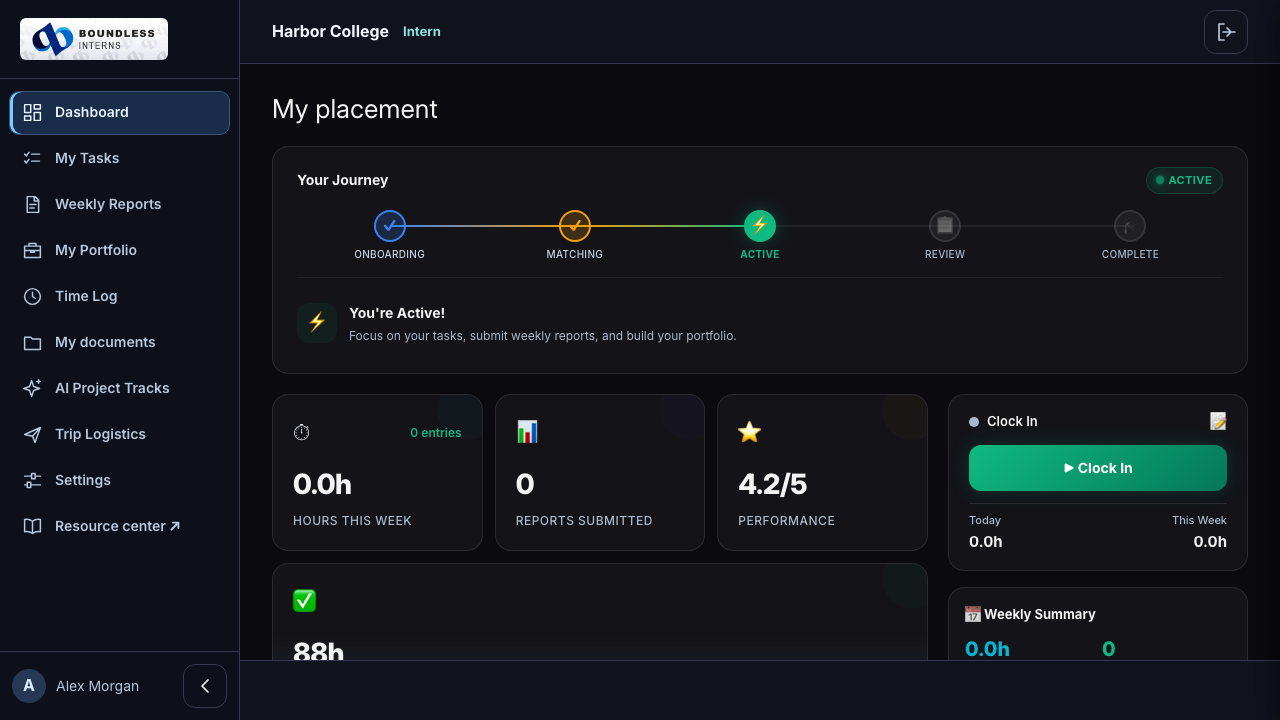
The dashboard opens when you sign in. Your Journey shows the five stages of a placement: Onboarding, Matching, Active, Review and Complete. The highlighted stage is where you are now, and the message under it tells you what to do next.
2.Clock in when you start work
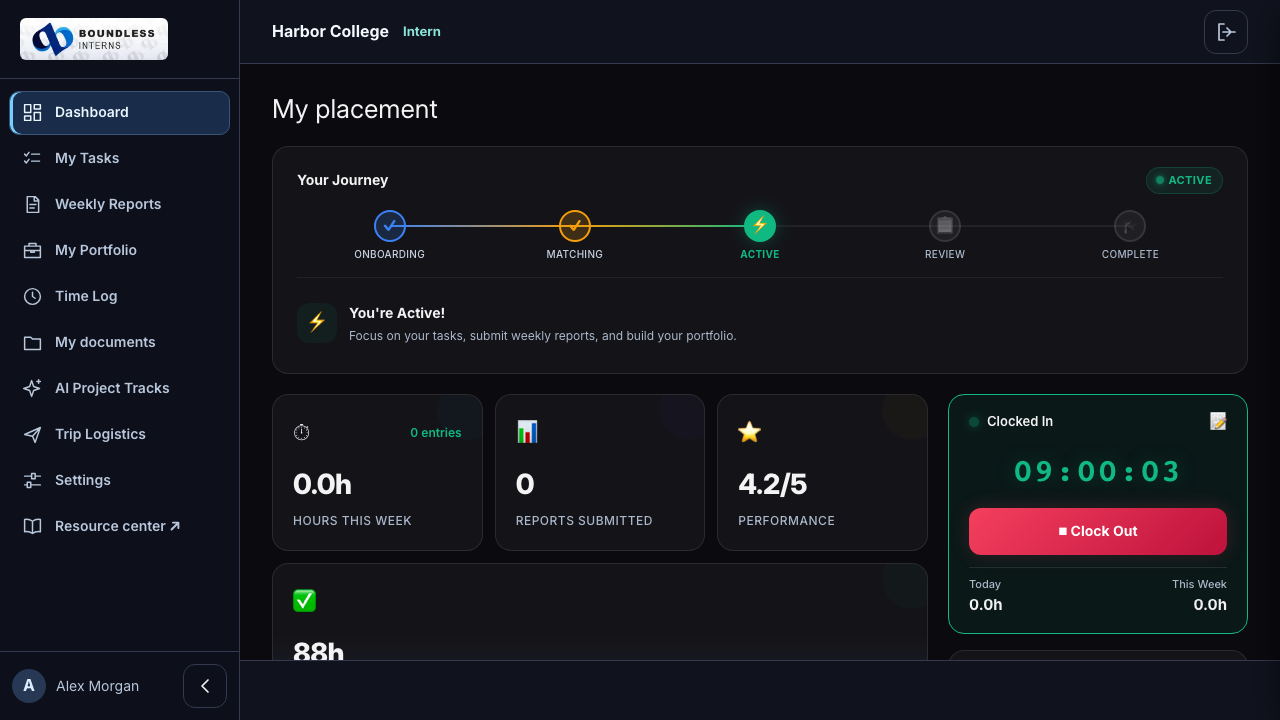
Press Clock In on the dashboard to start the timer. Press Clock Out when you finish for the day. Your host manager can see and review each entry, and your total hours appear on your portfolio.
Tip. Forgot to clock out? Tell your host manager. They review time entries and can flag one that looks wrong.
3.Work through My Tasks
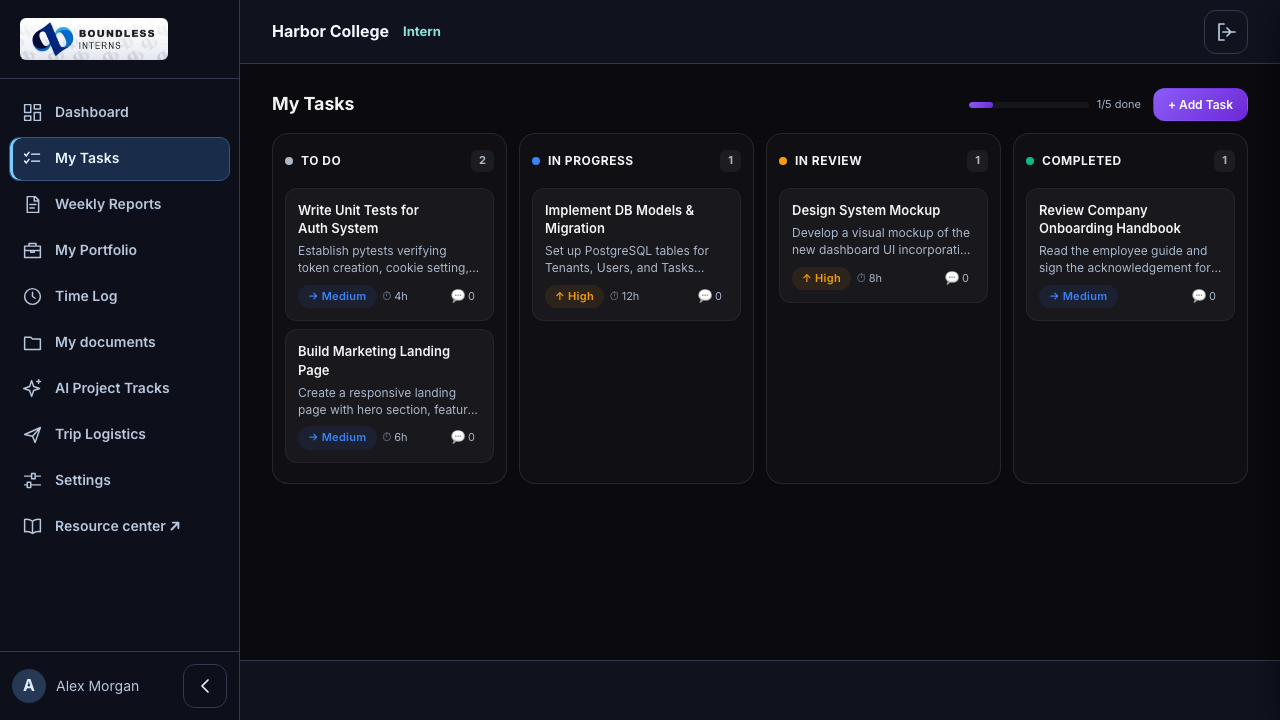
Open My Tasks in the left menu. Tasks from your host are grouped into To Do, In Progress, In Review and Completed. Drag a card to the next column as you make progress. Open a card to read the description or leave a comment.
4.Start your weekly report
Open Weekly Reports and choose New Report. Send one report for each week of your placement.
5.Describe your week in your own words
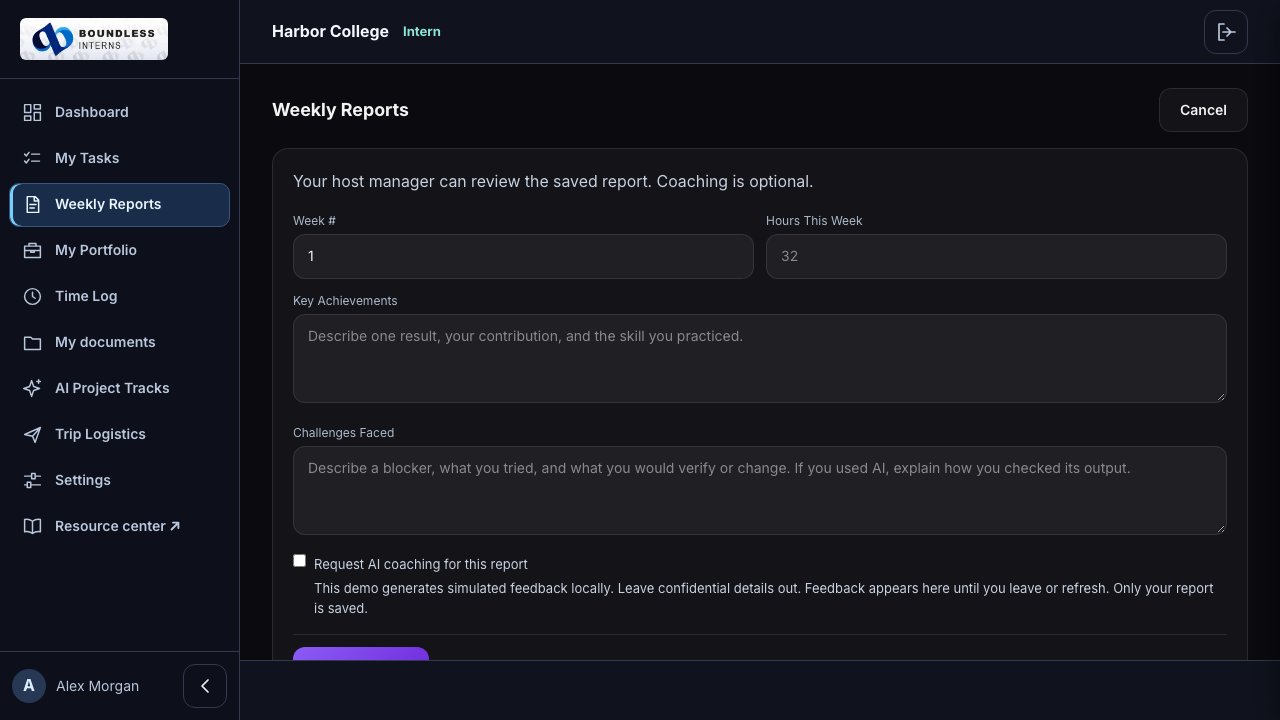
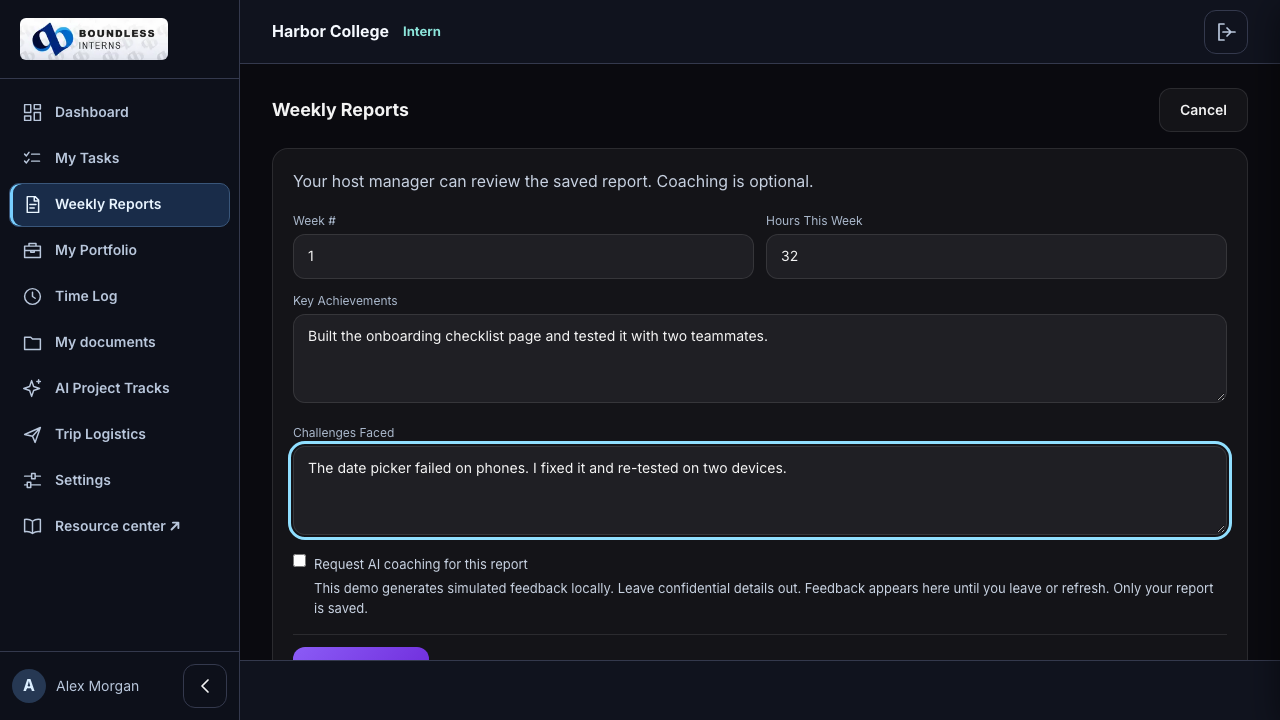
Enter the week number and the hours you worked. Under Key Achievements, describe one result and what you did to get there. Under Challenges Faced, describe a problem and how you handled it. Leave confidential company details out.
6.Choose whether you want coaching
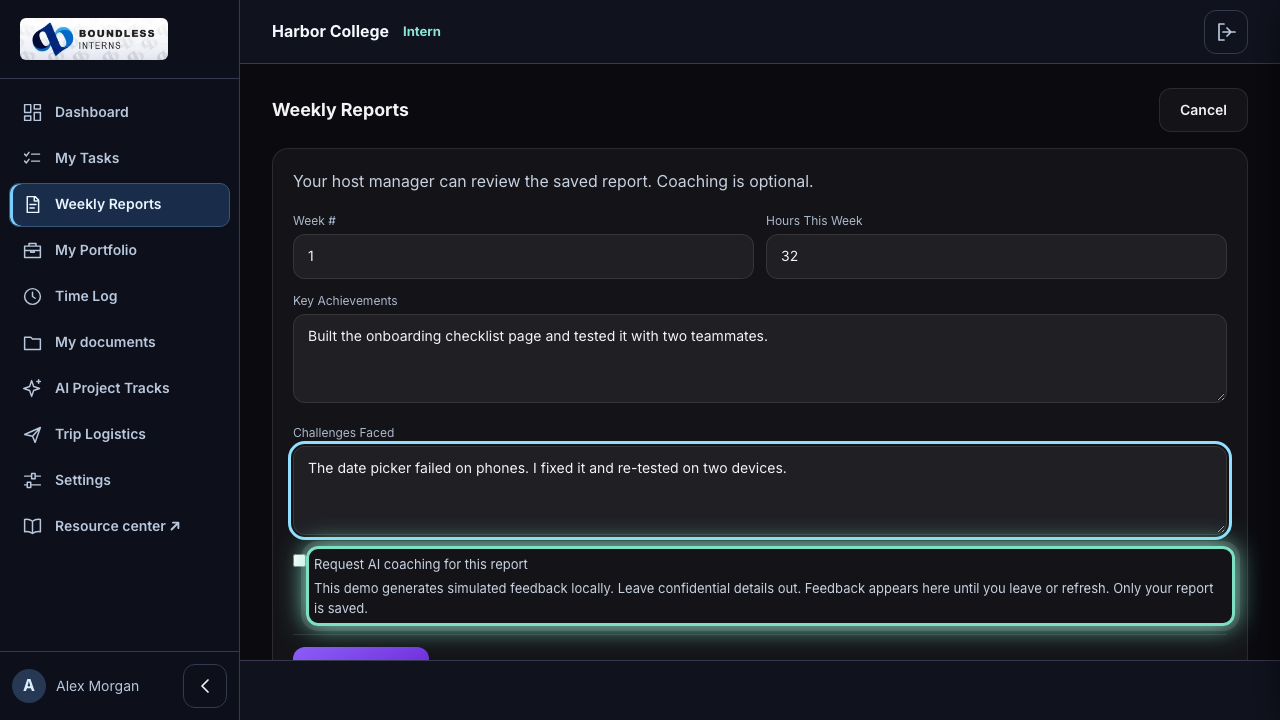
The Request AI coaching box is optional and starts unticked. If you tick it, your achievement and challenge text is used to write feedback for you. The feedback appears on screen until you leave the page. It is not saved and your host does not see it. Your report saves the same way with or without coaching.
7.Submit and check that it saved
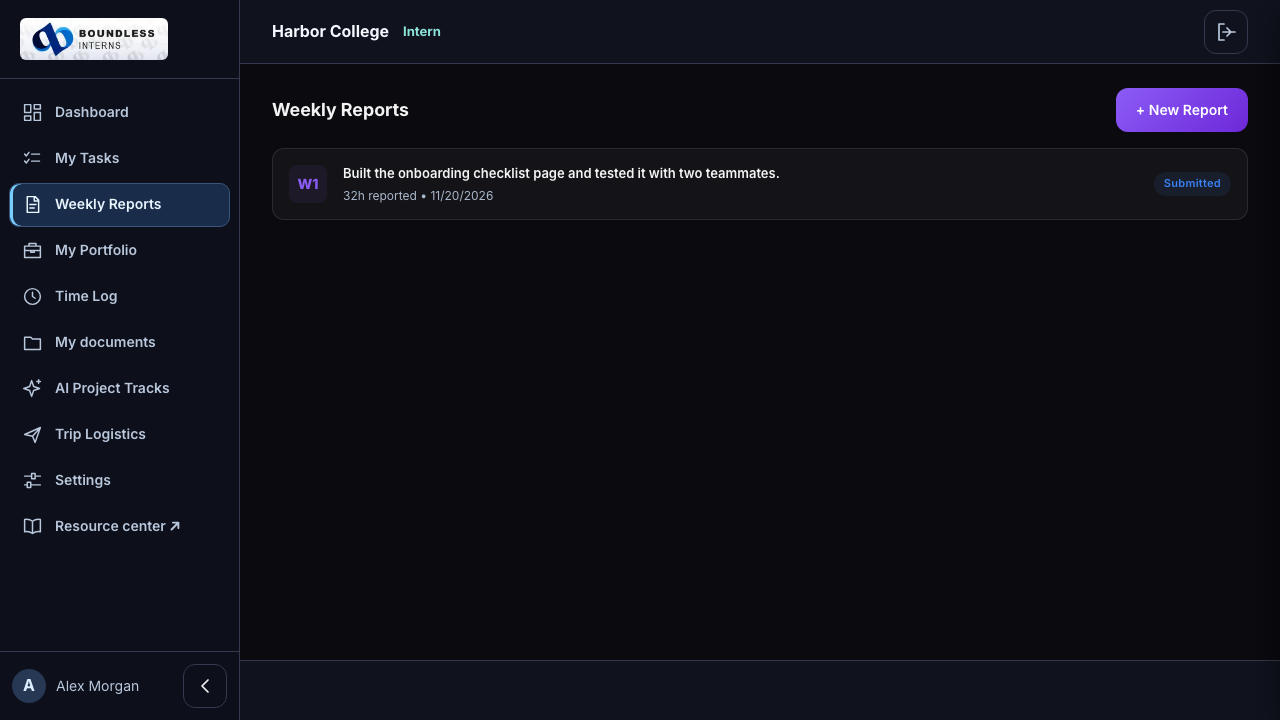
Choose Submit Report. The report appears in your Weekly Reports list marked Submitted. Your host manager reviews it, and the status changes when they approve or reject it.
8.Review your portfolio
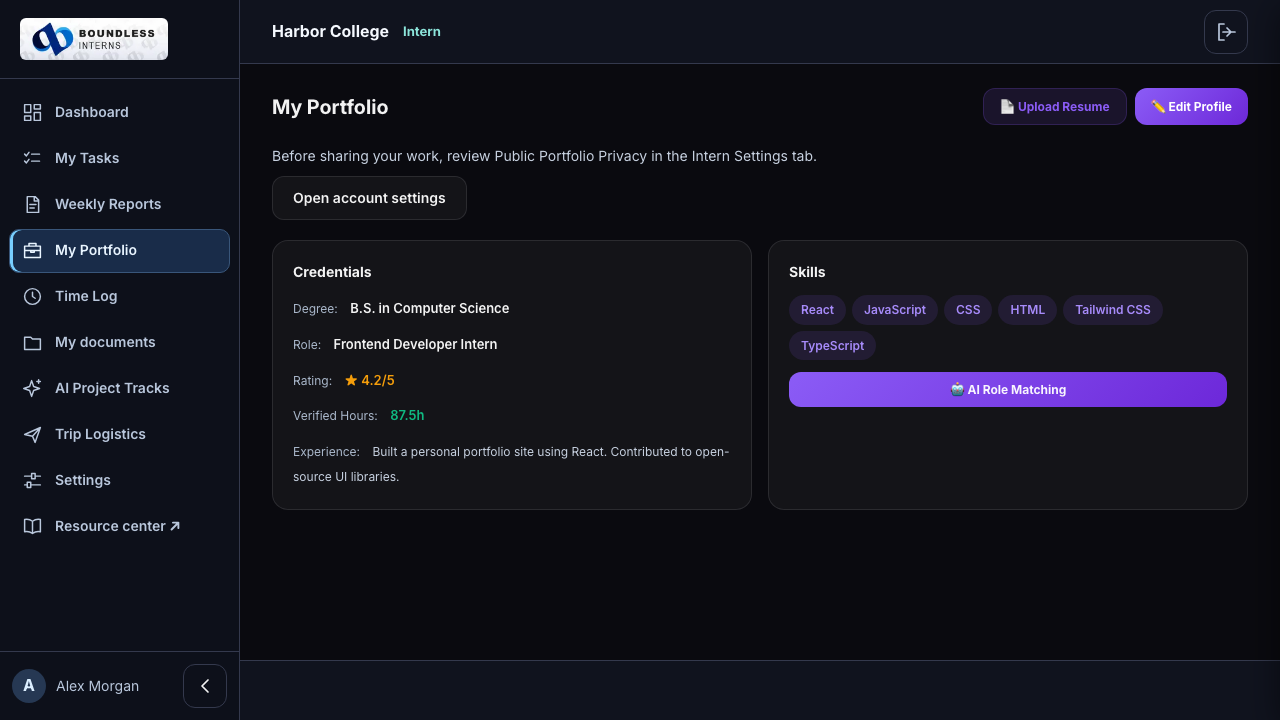
My Portfolio collects your degree, role, skills, rating and verified hours. Choose Edit Profile to update your details, or Upload Resume to add your CV.
9.Decide who can see your portfolio
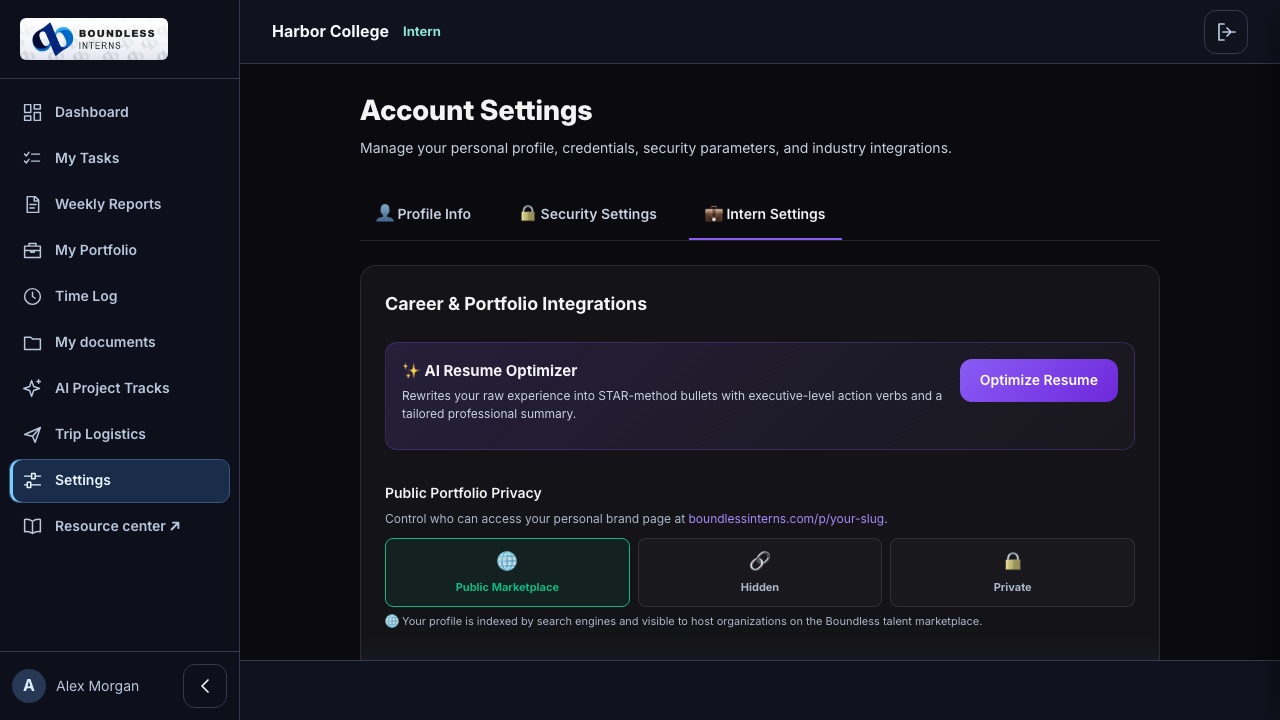
Open Settings, then Intern Settings. Under Public Portfolio Privacy choose Public (anyone can find it), Hidden (only people with the link) or Private (nobody outside your placement). You can change this at any time, and a private portfolio stops being visible straight away.
What happens next
When your placement ends, your host manager completes the internship and a certificate code is added to your portfolio. Anyone you give the code to can confirm it is genuine.
Common questions
- Do I have to use AI coaching?
- No. It is optional every time. Your report is saved and reviewed in the same way if you leave the box unticked.
- Who can see my weekly report?
- You, your host manager and, if you have one, your sponsor coordinator. Coaching feedback is shown only to you and is not stored.
- My dashboard says my request is pending. What now?
- Your university or agency coordinator has not approved your request yet. Contact them directly if it has been more than a few working days.
- How do I take my portfolio offline?
- Go to Settings, Intern Settings, and choose Private. The public page stops loading for everyone else.