
User guide · Host Manager
How to supervise an intern with Boundless Interns
Review weekly reports, follow each intern's progress, assign tasks, check hours and complete the placement.
Watch the walkthrough
Before you start
- Your organization's workspace is set up by the Boundless team. Contact us if you do not have a sign-in yet.
- Sign in at boundlessinterns.com/login and choose Host Portal.
- The steps below use a demo workspace with sample data.
Steps in this guide
- Start on your dashboard
- Open Approvals
- Read the report and decide
- Check the queue is clear
- Follow progress in Your interns
- Assign a task
- See the task on the list
- Review logged hours
- Complete the internship
1.Start on your dashboard
The dashboard shows Incoming referrals from a university or agency, your placed interns, and the number of items waiting for your decision under Pending Approvals.
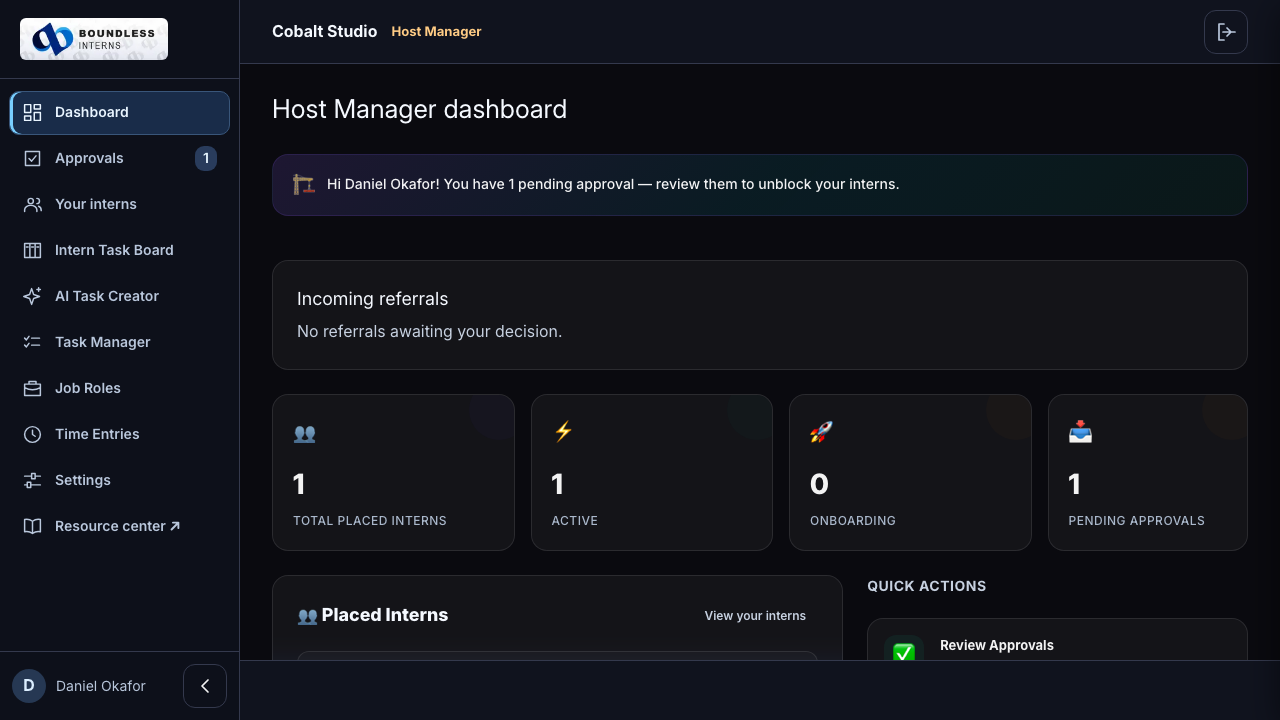
Tip. A referral is only a proposal. The student joins your interns after you accept it.
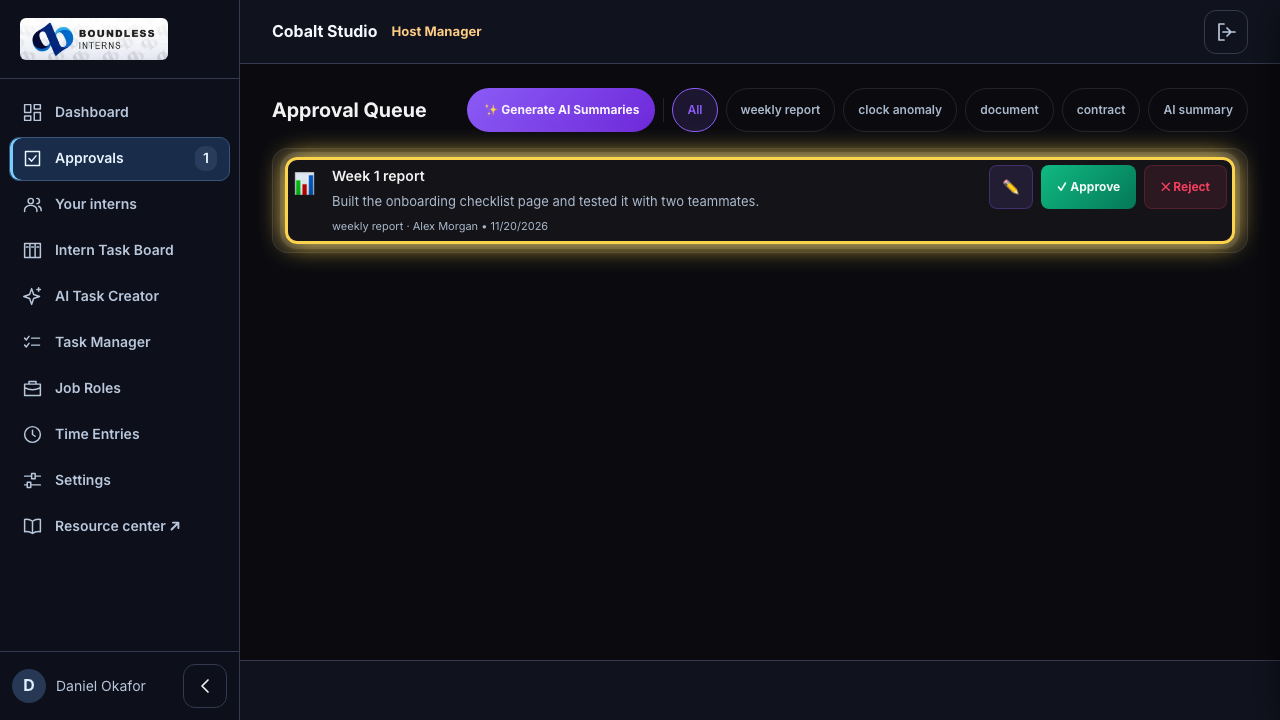
2.Open Approvals
Choose Approvals in the left menu. The number beside it is how many items are waiting. Each item shows what it is, who sent it and when. Use the filters at the top to show only weekly reports, time issues, documents or contracts.
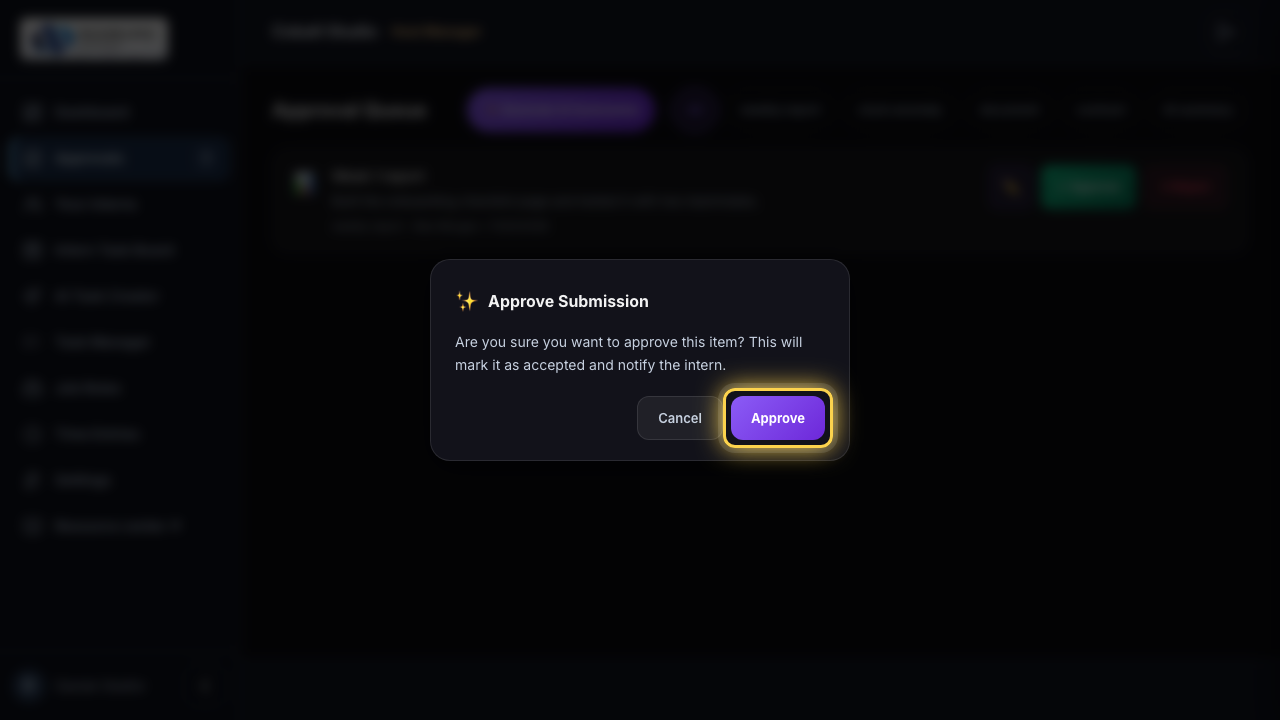
3.Read the report and decide
Read the intern's summary, then choose Approve or Reject. You are asked to confirm before the decision is saved.
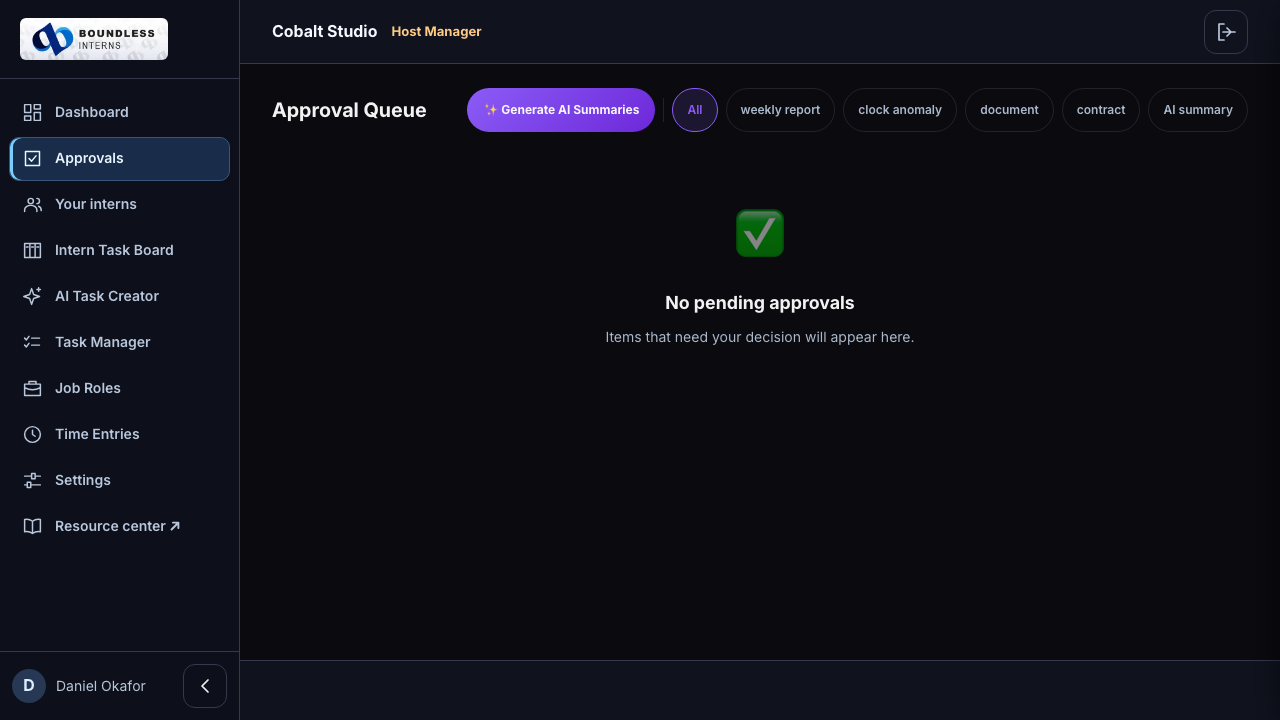
4.Check the queue is clear
After you confirm, the item leaves the queue. The intern sees the decision on their report, and their sponsor coordinator can see it too. If saving fails, the item stays in the queue with a message so you can try again.
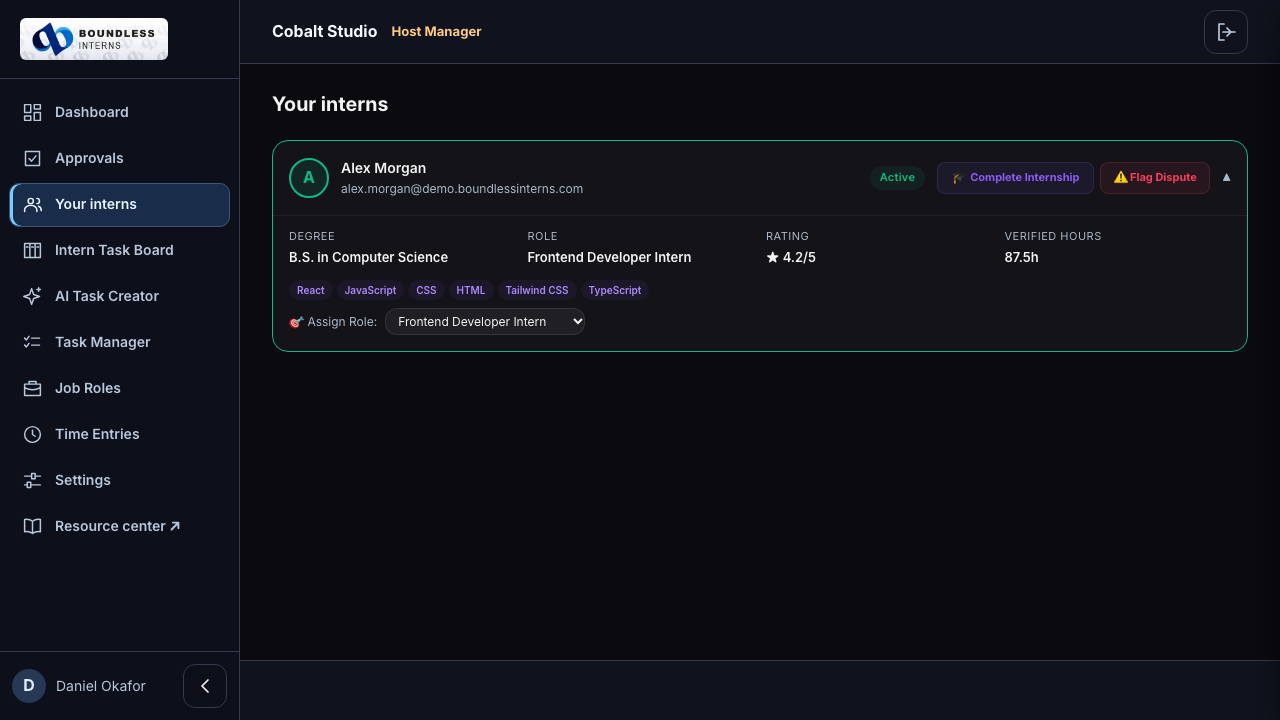
5.Follow progress in Your interns
Your interns lists every intern placed with you and their status. Open a row to see their degree, role, rating and verified hours, and to assign a job role.
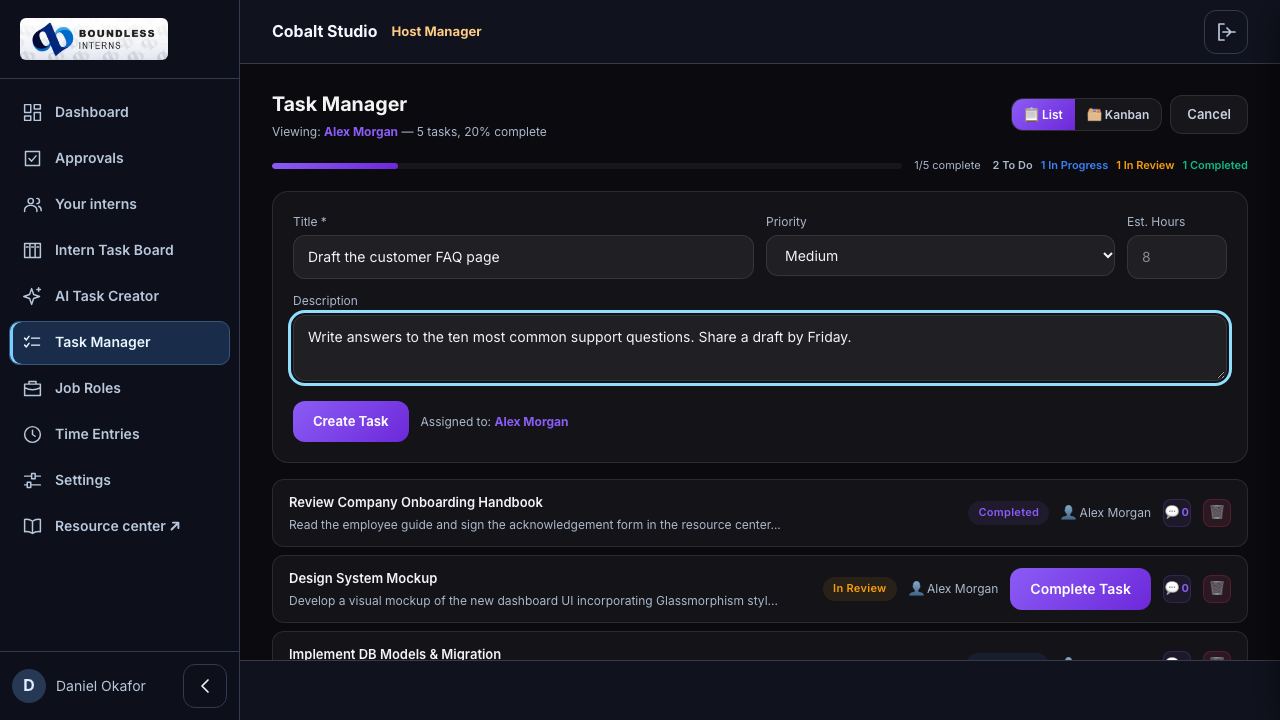
6.Assign a task
Open Task Manager and choose Create Task. Enter a clear title, pick a priority, add estimated hours if you like, and describe what a finished task looks like. Then choose Create Task.
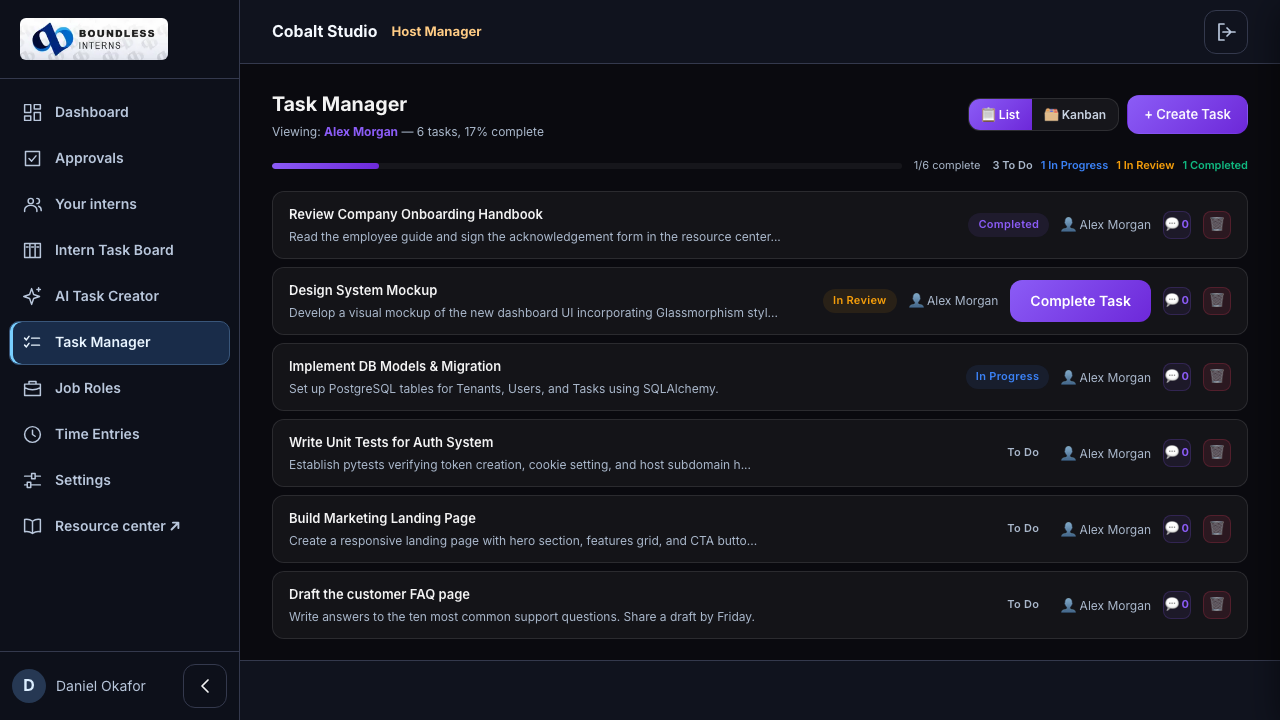
7.See the task on the list
The new task appears at the bottom of the list under To Do and on the intern's My Tasks board. When the intern moves a task to In Review, choose Complete Task to sign it off.
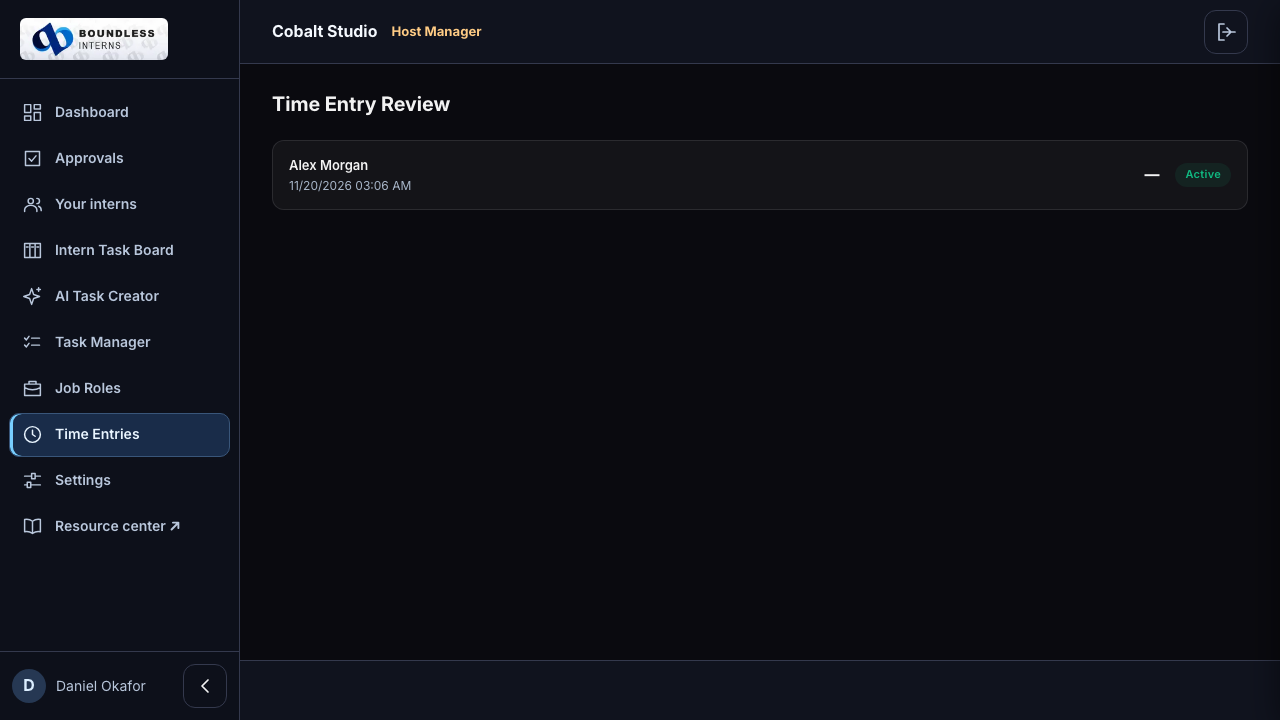
8.Review logged hours
Time Entries lists each clock-in and clock-out. Check that the hours look right. Flag an entry if something needs a conversation with the intern.
9.Complete the internship
When the placement ends, open Your interns and choose Complete Internship. Write a short evaluation of the intern's work and confirm. This issues the completion certificate, which names your organization as the host.
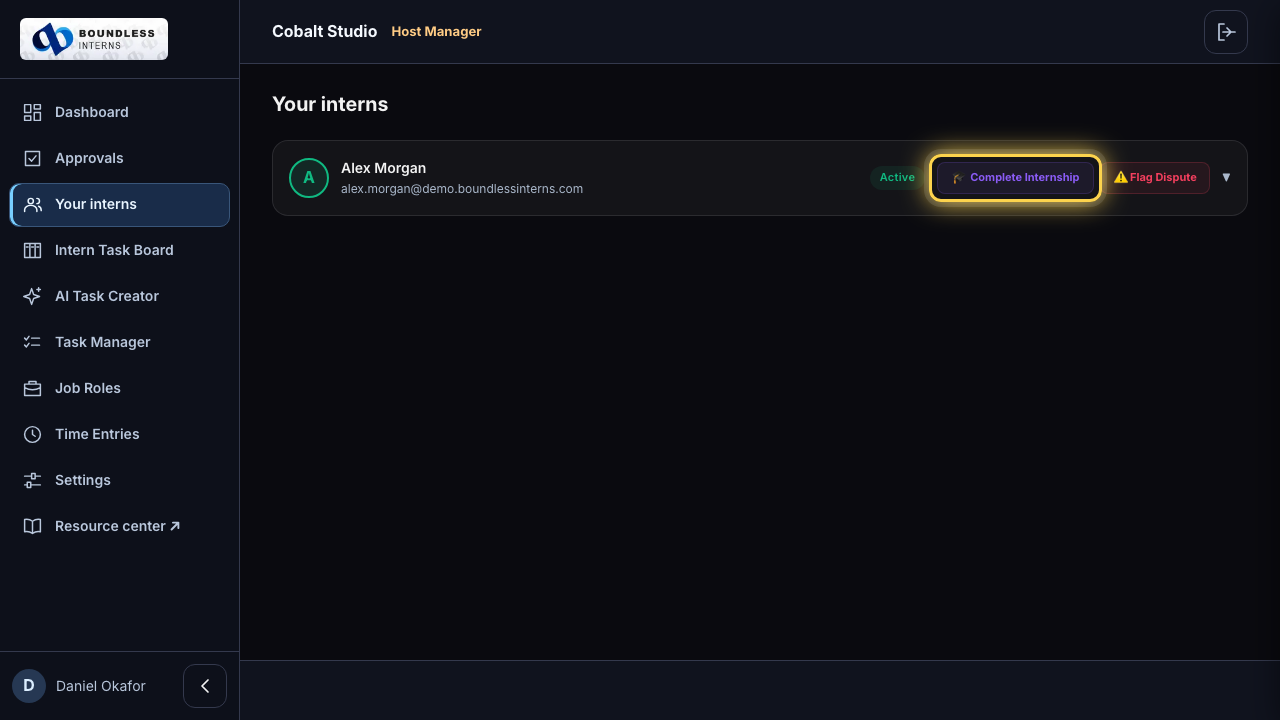
Tip. Completion cannot be undone from the portal. Finish reviewing reports and hours first.
What happens next
The intern's portfolio now shows the certificate. A sponsor coordinator or employer can check the code in Certificate Verify to confirm the host, the intern and the completion date.
Common questions
- An intern I expected is not in my list.
- Check Incoming referrals on the dashboard. The student appears in Your interns only after you accept the referral.
- I approved something by mistake.
- Contact the intern and your sponsor coordinator, then contact Boundless support. Decisions are recorded and cannot be reversed from the portal.
- Can a colleague help supervise?
- Yes. Use Invite Member on the dashboard to add a co-manager to your workspace.
- Do I see the intern's AI coaching feedback?
- No. Coaching feedback is shown only to the intern and is not saved with the report.